
How to Turn a Zoom Recording Into Short-Form Clips
Zoom recordings are a goldmine of content that almost everyone lets rot in a cloud folder. A single hour-long call can hold five or six moments worth sharing — a sharp answer, a customer story, a hot take. This guide shows how to pull those moments out and turn them into vertical clips with an AI video editor, without touching a timeline.
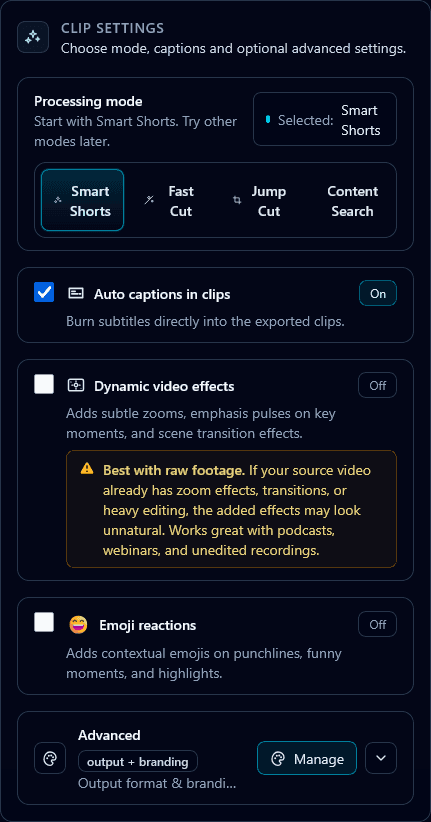
The problem with Zoom footage is that it is long, horizontal, and visually flat — two heads in gallery view is not what wins on TikTok. The job is threefold: find the good 20–45 seconds, reframe it to vertical without cutting anyone out of the shot, and caption it so it works on mute. Klypse does all three automatically, but understanding each step helps you get better clips.
Step 1: Export the recording from Zoom
In Zoom, record to the cloud or locally, then download the MP4. Choose the gallery or active-speaker recording rather than a single shared-screen file if you want faces in your clips. If the call was screen-share heavy (a demo or slide deck), keep that file too — it works well for tutorial-style clips.
Step 2: Upload and let AI find the highlights
Upload the file to Klypse. It transcribes the whole recording, then scores every candidate moment for hook strength — the opening line's ability to stop a scroll. Instead of scrubbing an hour of footage, you get a ranked shortlist of the strongest 10–15 clips with the best surfaced first.
This is where most manual editing time disappears. You are no longer hunting for the good parts; you are approving them. If you want clips about one specific topic, Search mode lets you pull every moment where a keyword or theme comes up.
Step 3: Reframe to vertical with face tracking
A gallery-view call is the hardest thing to crop to 9:16 — a naive center crop cuts one speaker in half. Klypse's face tracking detects each speaker and follows the active one, keeping them framed as the conversation bounces back and forth. For two-person calls it can use a split layout so both stay on screen. See smart cropping explained for how this works.
Step 4: Add captions and review
Around 85% of social video is watched on mute, so captions are not optional. Klypse generates word-accurate captions synced to the audio, placed inside the safe zone so they never collide with platform UI. Every cut is shown to you and editable — nothing is a black box.
Step 5: Export and post
Export each clip in the right ratio and post natively to each platform. A good rhythm is one Zoom recording → five clips → one per weekday. That turns a call you had anyway into a full week of repurposed content.
Whether it is a sales call, a podcast interview over Zoom, or an internal all-hands, the workflow is identical. The recording already exists — the only thing standing between it and a week of posts is the editing, and that is exactly the part you can now automate.
Frequently Asked Questions
Can I turn a Zoom recording into TikToks automatically?
Yes. Upload the Zoom MP4 to Klypse and it transcribes the call, finds the strongest moments, reframes them to vertical with face tracking, and adds captions — producing ready-to-post clips without manual editing.
What if there are two people on the call?
Face tracking follows the active speaker, and for two-person calls Klypse can use a split-screen layout so both people stay visible throughout the clip.
Do I need the gallery view or shared-screen recording?
Use the gallery/active-speaker recording for face-driven clips. Keep the shared-screen file too if you want tutorial or demo clips from the same call.
Turn your long videos into viral shorts
Klypse finds the best moments, tracks faces, and captions every clip automatically. Start free — no credit card required.
Related reading
More from the blog
How to Turn a Webinar Into Social Clips
Marketers spend weeks producing a webinar and then post it once. Here's how to repurpose a single webinar into a month of short-form clips.
How to Add Captions to a Podcast Video
Captions are what make podcast clips watchable on mute. Here's how to add accurate, well-placed captions to podcast video clips automatically.
How to Resize a Landscape Video for TikTok, Reels & Shorts
Resizing a 16:9 video to 9:16 the wrong way cuts people out of frame. Here's how to convert landscape video to vertical without losing the subject.